
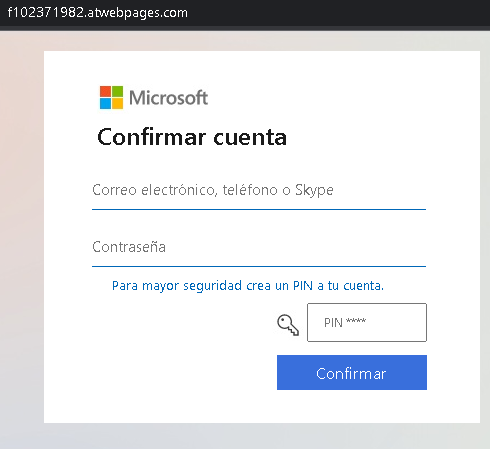
A Spanish-language phishing campaign targeting Microsoft 365, Outlook, and OneDrive users utilizes fake document-sharing notifications to harvest credentials via cloned login pages. This attack pressures victims with a “Shared Document” pretext to enter their email and password on a fraudulent site designed to steal login data and bypass security checks. The case emphasizes the need to inspect URLs for official Microsoft domains and verify unexpected shared document notifications.
Threat Intel: This scam layout was logged, cross-checked, and neutralized firsthand by the
Antiphishing.bizsecurity team during our standard URL vetting operations. To protect the public, the phishing source domain has been completely disabled within our infrastructure. We document and analyze these live visual patterns to help security researchers and users detect replica fraud techniques before financial damage occurs.
Cybersecurity Measures: How to Avoid Microsoft Phishing (Spanish/Global)
To protect your Microsoft / Office 365 account and prevent sensitive documents from being stolen, follow these essential safety rules:
1. Verify the Domain (The URL Rule)
Phishing sites often use lookalike domains to trick Spanish-speaking users (e.g., microsoft-inicio.com, seguridad-office365.online, verificar-cuenta.net).
- Action: Official Microsoft login pages always reside on
microsoft.com,live.com, oroutlook.com. If the address bar shows anything else, close the window immediately.
2. Inspect the Language and Tone
Scammers use urgent phrases in Spanish to induce panic, such as:
- “Su cuenta será suspendida en 24 horas.” (Your account will be suspended in 24 hours.)
- “Error de entrega de mensajes entrantes.” (Incoming message delivery error.)
- “Actualización obligatoria de seguridad.” (Mandatory security update.)
- Action: Microsoft will never threaten to delete your account via an email link. Real alerts appear in your official Microsoft 365 Admin Center or via system notifications.
3. Mandatory Two-Factor Authentication (2FA)
Password theft is the primary goal of this phishing page. 2FA is your final line of defense.
- Action: Enable Microsoft Authenticator or an app-based 2FA. Even if the attacker steals your password, they cannot access your files without the approval notification on your smartphone.
4. The “No-Link” Policy for Login
Emails with a “Login” or “Verify Now” button are the most common entry points for threat actors.
- Action: Never log in through a link sent in an email. If you receive an alert, open a new browser tab and manually type ://
office.comoroutlook.comto check your status safely.
5. Check the Sender’s Address
Scammers often spoof the sender’s name to say “Microsoft Support,” but the actual email address is a random domain (e.g., support@seguridad-cloud.es).
- Action: Hover your mouse over the sender’s name to see the real email address. If it doesn’t end in @
microsoft.com, it is a scam.
6. Use a Password Manager
Tools like Bitwarden, Dashlane, or 1Password are designed to identify sites by their URL.
- Action: If you are on a phishing page, your password manager will not offer to auto-fill your credentials. This is a definitive technical warning that the site is a fraud.