
A critical iCloud phishing campaign that uses fraudulent “Find My” and “Storage Full” notifications to steal Apple ID credentials and bypass 2FA. Attackers use pixel-perfect fake login pages to capture credentials in real-time, allowing them to unlock stolen devices and gain full access to personal data.
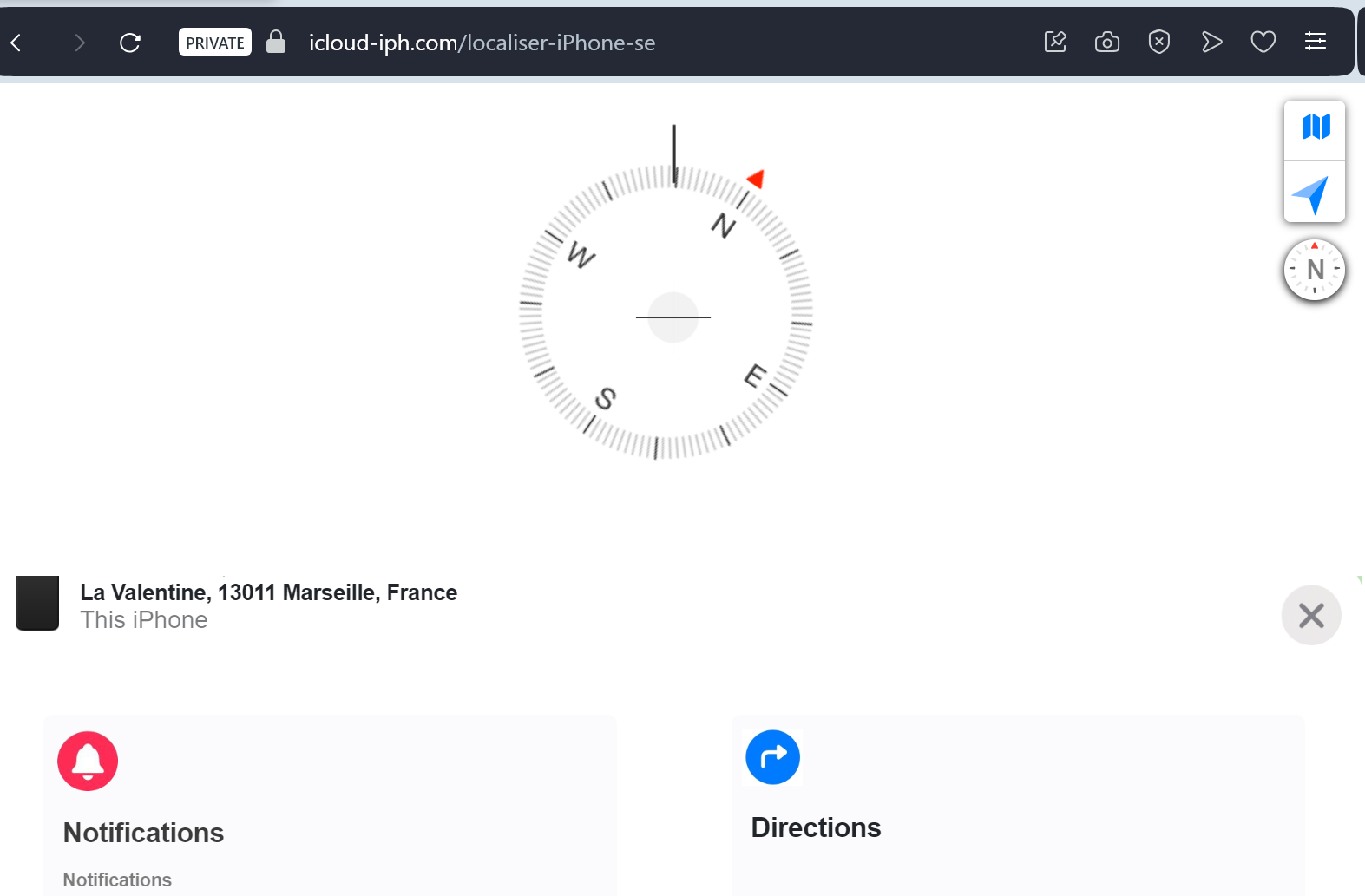
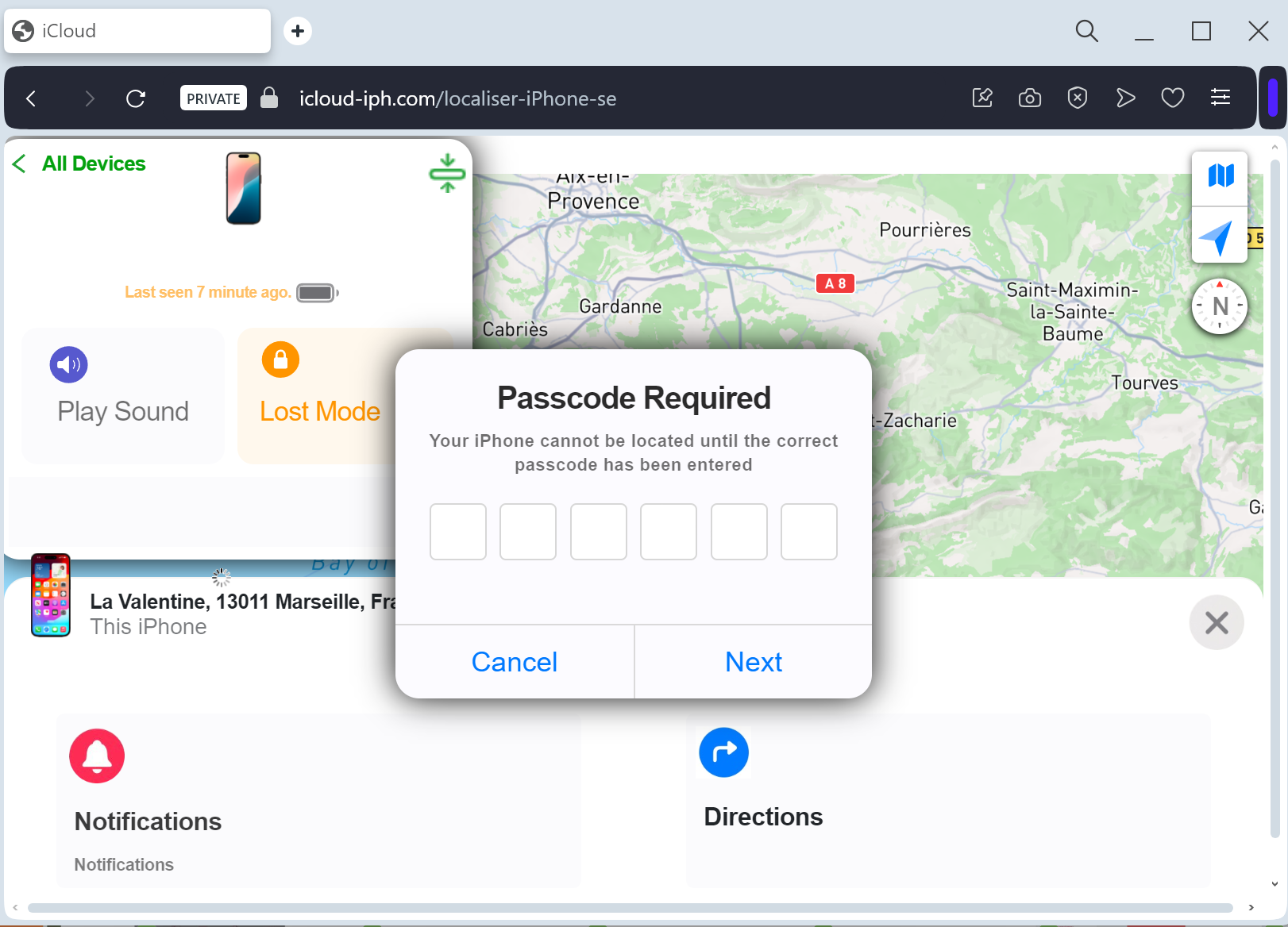
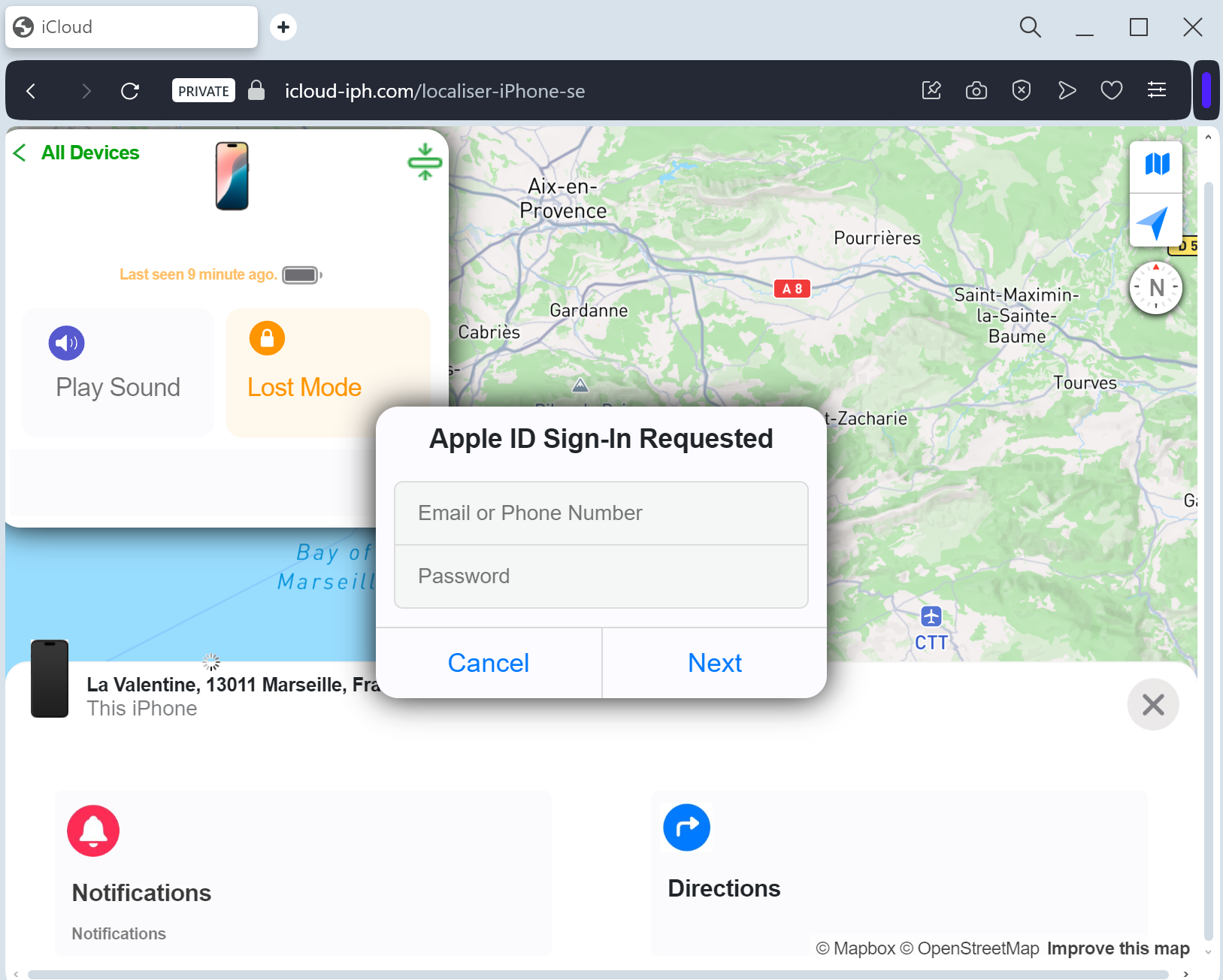
iCloud “Find My iPhone” & Account Security Phishing
Target: Apple ID / iCloud Users Worldwide
Threat Level: Critical (Full Identity, Photo, and Device Control Theft)
Phishing Method Description
This attack often uses a “Lost Device Recovery” or “Unauthorized Access” pretext. Victims receive an urgent SMS (Smishing) or Email claiming that their “Lost iPhone has been located” or that “Your iCloud account has been logged into from a new location.”
The link leads to a pixel-perfect clone of the iCloud Sign-in portal. This sophisticated phishing kit is designed to harvest:
Apple ID Email / Username
Password
Two-Factor Authentication (2FA) Codes: The fake site prompts the victim for their 6-digit SMS or device code in real-time, allowing the attacker to bypass security instantly.
Device Passcode: In some versions, the site asks for your iPhone passcode to “verify ownership.”
⚠️ Red Flags to Watch For
The Deceptive URL: The official domain is strictly icloud.com or ://apple.com. Phishing sites use lookalikes such as find-my-iphone-cloud.com, secure-icloud-login.net, apple-support-verify.org, or free subdomains like icloud-apple.web.app.
Non-Official SMS Senders: Apple does not send SMS alerts for “found” phones from standard 10-digit mobile numbers. Official notifications usually appear directly on your other Apple devices or come from a verified short code.
Requesting a Device Passcode: Apple will never ask for your physical iPhone/iPad passcode on a website login page.
🛡️ How to Protect Yourself
The “Sign-In” Habit: Never log into iCloud through a link in an email or SMS. If you need to check your account, manually type ://icloud.com into your browser.
Check “Find My” Directly: If you lost your phone, only use the official Find My app on another Apple device or go directly to the official ://icloud.com.
Never Share 2FA Codes: If you receive a 2FA code that you didn’t request, do not enter it anywhere. It means someone already has your password and is trying to get the final key.
Lock Your SIM: Use a SIM PIN to prevent scammers from receiving your SMS 2FA codes if they have stolen your physical phone.
💡 Expert Security Tip: The “Found Phone” Trap
The Method:
This is a Double-Victimization Attack. If your iPhone was recently stolen, the thieves will send you this phishing link. They aren’t trying to help you “find” your phone; they want your Apple ID credentials.
The Trap:
Once you enter your password and 2FA code, the scammers can remove the “Find My” Activation Lock from your stolen device. This allows them to wipe the phone and sell it for a high price, while also gaining access to all your private photos, messages, and saved passwords in Keychain.
How to Protect Yourself:
Ignore “Found” Links: If you get a text saying your lost phone is located at a specific address with a link, do not click it. It is a trap to unlock your device remotely.
Trust only the App: Use only the official Apple “Find My” app on a trusted device to track your hardware.