
This phishing campaign abuses legitimate Windows device management (MDM) features, masquerading as a fake Google Meet update to gain full, remote control over a victim’s computer. Instead of stealing credentials, the attack tricks users into enrolling their devices into an attacker-controlled system, allowing for malicious software installation and remote file access.
Incident Report: This malicious interface was intercepted, verified, and locked down firsthand by the
Antiphishing.bizsecurity team during our standard URL vetting operations. To protect the public, the hostile origin link has been completely disabled within our infrastructure. We document and analyze these live visual patterns to help security researchers and users detect replica fraud techniques before financial damage occurs.
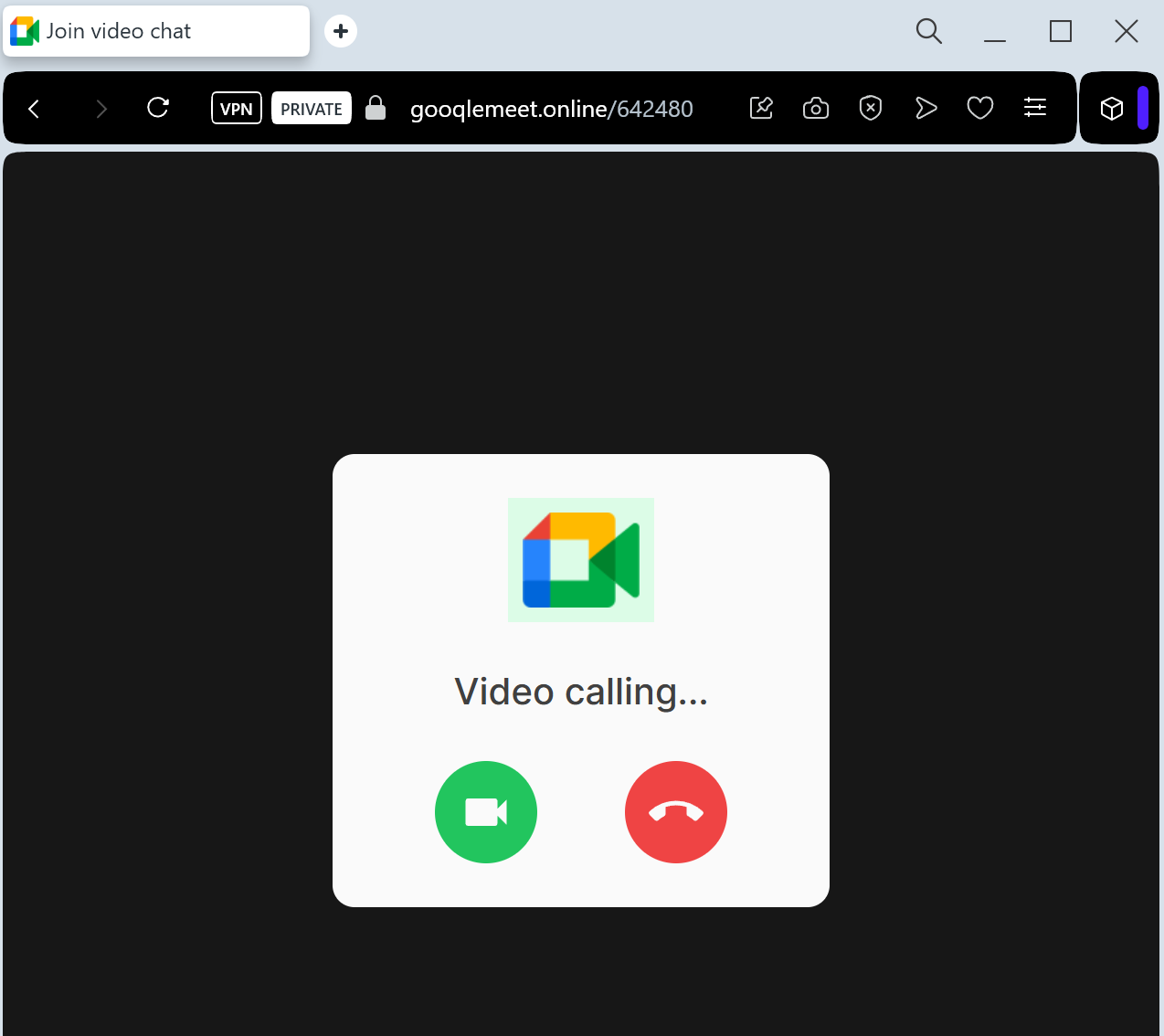
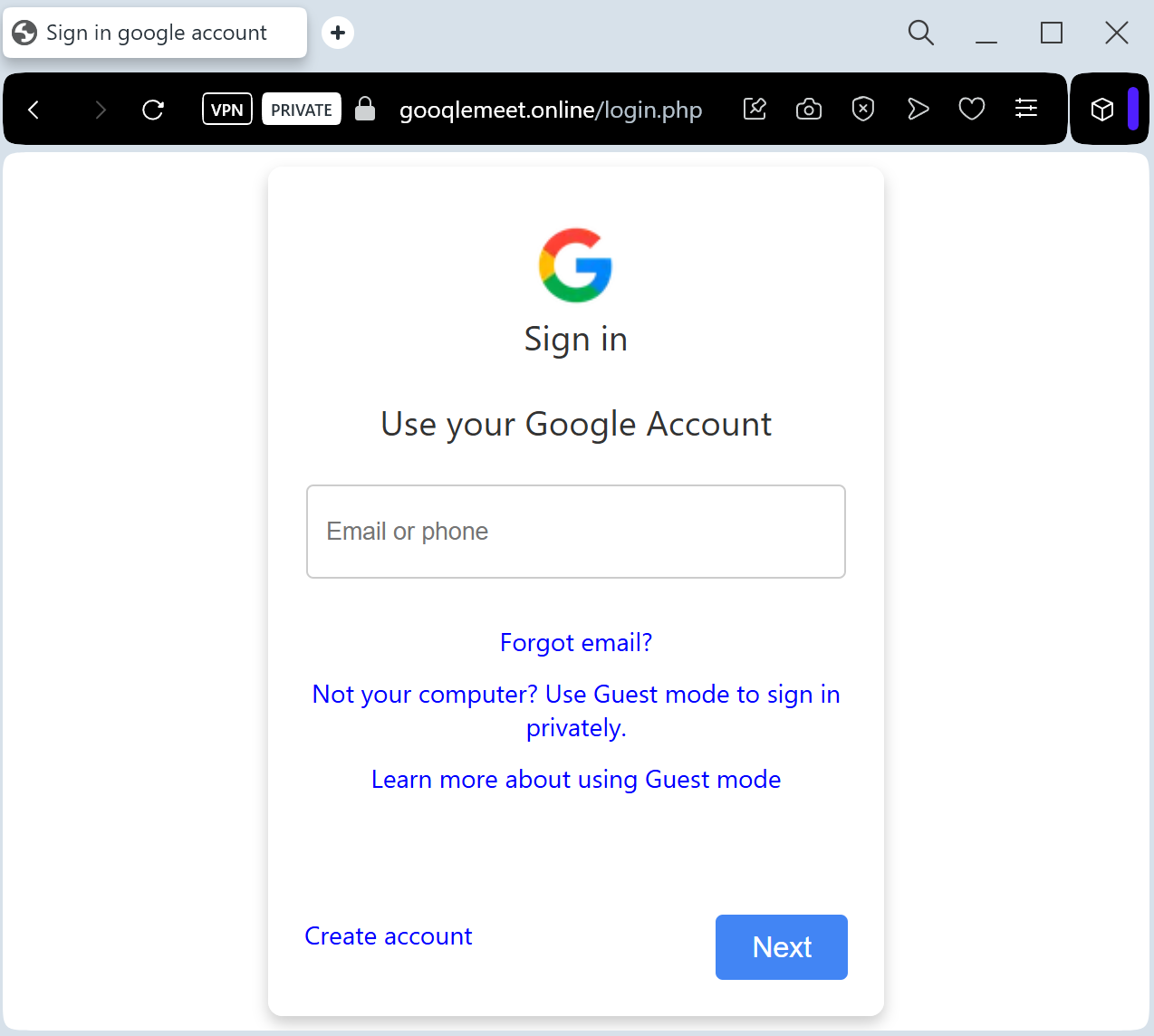
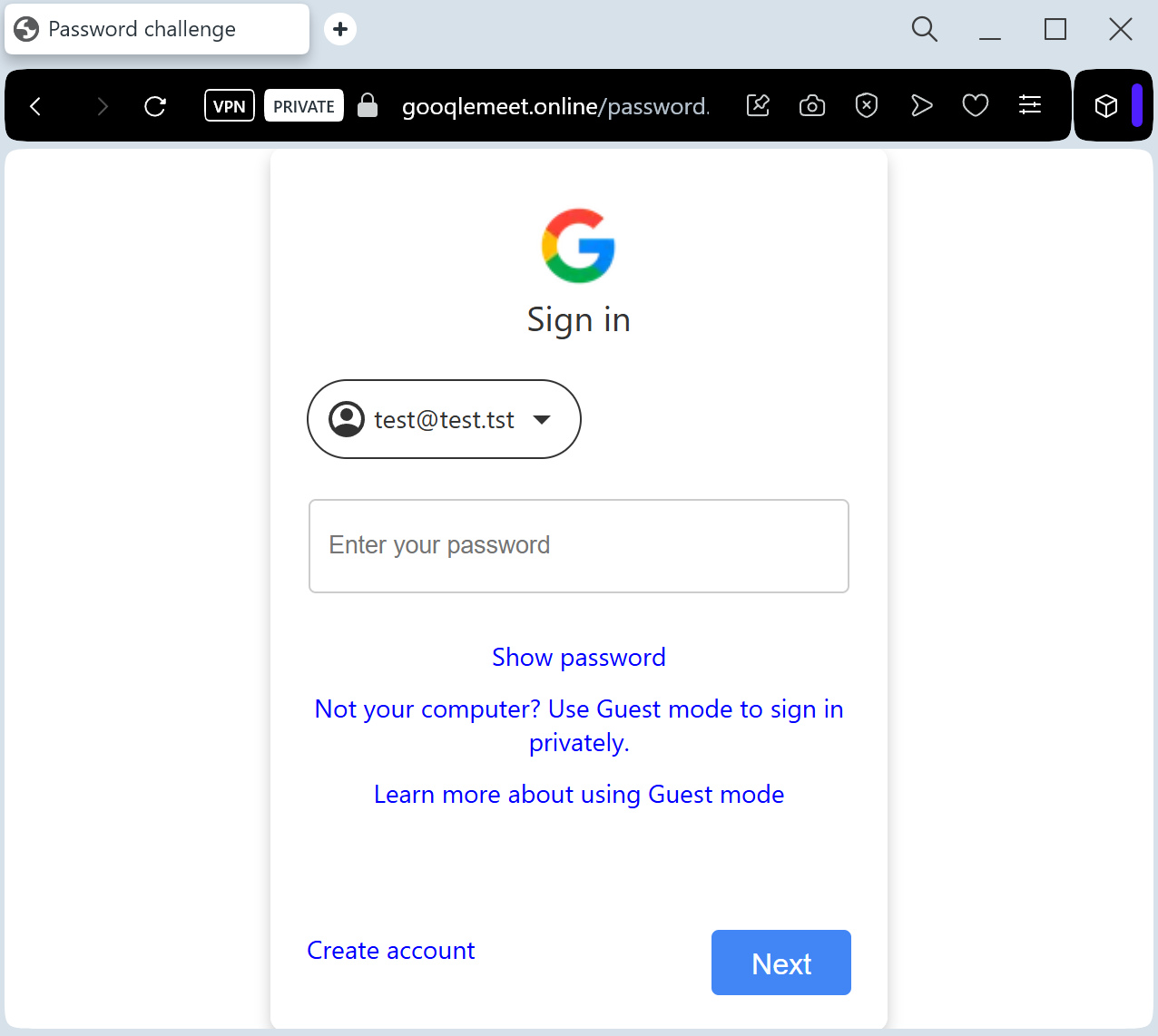
Target: Corporate Employees, Job Seekers, and Freelancers
Threat Level: Critical (Business Email Compromise & Google Account Takeover)
Phishing Method Description
This attack leverages the “Fear of Missing Out” (FOMO) or professional urgency. Victims receive an email, Calendar invite, or LinkedIn message with a link to a “Scheduled Interview,” “Emergency Team Meeting,” or “Legal Consultation” via Google Meet.
The link leads to a pixel-perfect clone of the Google Meet landing page. Before “joining” the call, the site prompts the victim to “Sign in to verify your identity.” This is a Real-time Credential Harvesting kit designed to steal:
Google Account Credentials (Email and Password)
Session Cookies: To bypass Multi-Factor Authentication (MFA).
2FA Codes: The fake site intercepts SMS codes or “Google Prompts” in real-time to gain instant access to the victim’s Gmail and Drive.
Red Flags to Watch For
The Deceptive URL: Official Google Meet links always start with ://
google.com. Phishing sites use lookalikes such as meet-google-join.net, google-meet-session.com, or free subdomains like joining-meet.web.app.Unsolicited Calendar Invites: Scammers often deceptive tactic the “automatically add invitations” feature in Google Calendar to make the meeting look legitimate and internal.
Request to Sign In: If you are already logged into your Google account in your browser, Google Meet will never ask you to re-enter your password just to join a meeting.
How to Protect Yourself
Check the “Join” Screen: Authentic Google Meet pages show your profile picture in the top right corner if you are already logged in. If the page looks “blank” or asks for a login, close it.
Verify the Organizer: Check the email address of the person who sent the invite. If it’s from an external or suspicious domain (e.g., hr-department@
gmail-security.top), do not click.Use Hardware 2FA: Security keys (like Yubico) prevent threat actors from using stolen 2FA codes, as the key is physically tied to the legitimate
google.com domain.Disable Auto-Invites: Go to your Google Calendar settings and change “Add invitations to my calendar” to “Only if I respond to the invitation by email” to prevent “Ghost” meetings from appearing.
Expert Security Tip:
This is a Credential & Session Theft attack. Scammers use the familiar Google Meet interface to lower your guard. Remember: Google will never ask for your password to join a meeting if you are already signed into your browser. If a “Meeting” page asks for your password, it is 100% a phishing trap.