
Analysis Memo: This spoofed page was detected, analyzed, and contained firsthand by the
Antiphishing.bizsecurity team during our automated link scanning workflows. To protect the public, the phishing source domain has been safely deactivated within our infrastructure. We document and analyze these live visual patterns to help security researchers and users recognize deceptive clone designs before financial damage occurs.
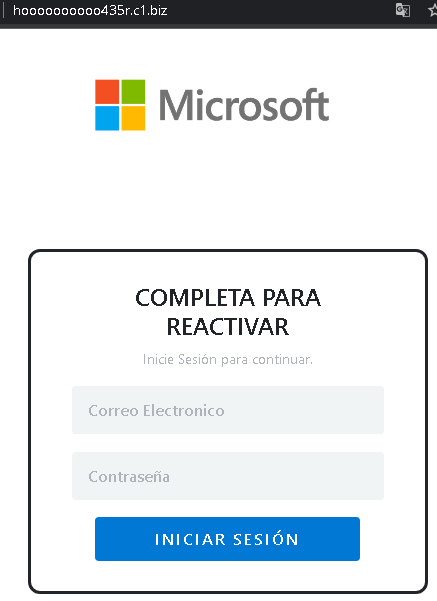
This screenshot shows a phishing page impersonating Microsoft, targeting Spanish-speaking users. The page uses a “reactivate” pretext to pressure victims into entering their email address and password.
Threat Analysis: Microsoft Phishing – Fake “Reactivate” Login Page
This phishing campaign impersonates Microsoft (likely Outlook, Hotmail, or Office 365). The page claims the victim needs to “reactivate” their account, creating a sense of urgency. When the victim enters their email and password and clicks “Iniciar sesión,” the credentials are captured and sent to the attacker.
The goal:
The attacker aims to steal Microsoft account credentials. With these, they can access the victim’s email, reset passwords for other services, and spread further phishing attacks.
Red flags to watch for:
- Suspicious URL: The page is hosted on a domain that is not
microsoft.comoutlook.comlive.com - Unsolicited “reactivation” request: Microsoft does not send emails or messages with links requiring users to “reactivate” accounts by logging in.
- Generic, minimal design: The page lacks the full Microsoft branding, security notices, and two‑factor authentication options found on legitimate login pages.
- No personalization: The page does not display a security image, account name, or any personalized element that would appear on a real Microsoft login after initial identification.
What to do if you encounter this:
- Do not enter your email and password on this page.
- If you are a Microsoft user, always access your account by typing
outlook.commicrosoft.com - If you have already entered your credentials, change your Microsoft password immediately and enable two‑factor authentication (2FA) to protect your account.
Protective measures:
- Bookmark the official Microsoft login page and use that bookmark to access your account.
- Use a password manager – it will autofill only on legitimate Microsoft domains.
- Enable two‑factor authentication on your Microsoft account.
- Be suspicious of any unsolicited message that asks you to “reactivate” or “verify” your account via a link.