
This phishing campaign utilizes a high-fidelity clone of the Microsoft account creation page to steal user credentials, personal data, and backup contact information under the guise of creating a new profile. The fake form, which often appears after clicking a deceptive link, captures the “new” password, which is frequently a recycled, primary password, along with PII that can be used to bypass 2FA on actual accounts. To stay safe, users should always verify that the URL resides on microsoft.com, live.com, or outlook.com and manually type addresses rather than clicking links.
Security Notice: This malicious interface was detected, analyzed, and contained firsthand by the
Antiphishing.bizsecurity team during our automated link scanning workflows. To protect the public, the dangerous destination URL has been fully defanged within our infrastructure. We document and analyze these live visual patterns to help security researchers and users spot lookalike phishing methods before financial damage occurs.
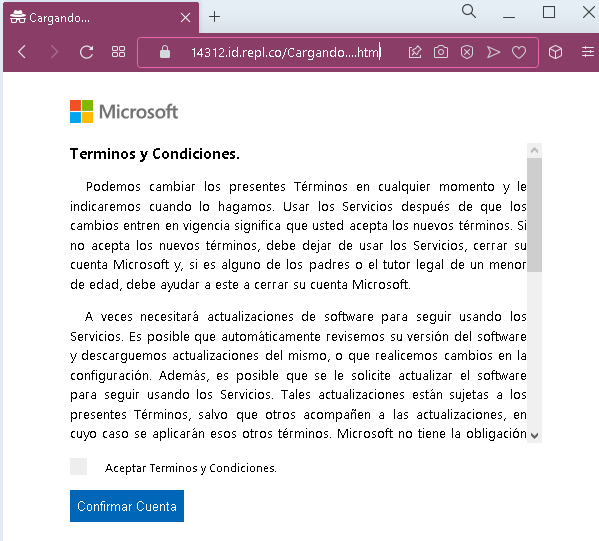
Screenshot #1: The Data Entry Form
The Trap: The page is a pixel-perfect replica of the live.com registration screen. It asks for a new email address and a password.
The Psychology: Victims feel safe because they think they are creating information, not giving it away. However, most people use the same 1–2 passwords for everything. Once you click “Next,” your “new” password is sent directly to the attacker’s server.
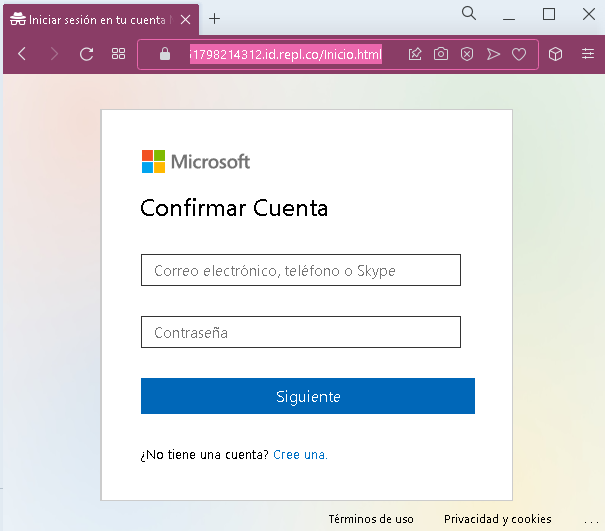
Screenshot #2: Personal Data Collection
The Trap: After the password, the kit asks for First Name, Last Name, and Date of Birth.
The Intent: This is “Fullz” harvesting. This data is used to answer security questions on your real accounts or to perform identity theft and open fraudulent credit lines.
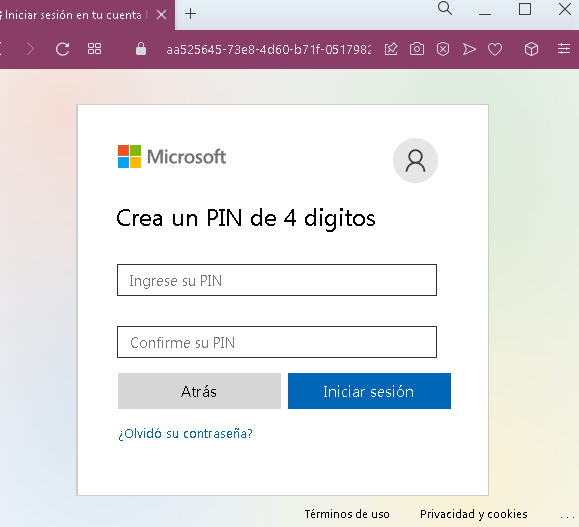
Screenshot #3: Verification & Backup Data
The Trap: The final step often asks for a Backup Email or Phone Number.
The Impact: By capturing your recovery methods, the attacker can try to take over your other accounts (Gmail, Facebook, Bank) by initiating password resets using the phone number or backup email you just provided.
Then user will be redirected to the true Microsoft website:
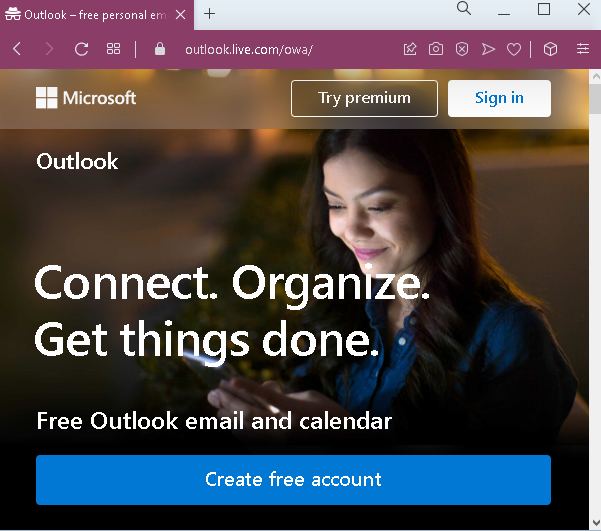
Fake Microsoft Account Creation Page
Target: Global users of Outlook, OneDrive, and Azure services.
Threat Level: Critical (Credential Harvesting & Identity Theft)
Phishing Method Description
This attack targets users by mimicking the official Microsoft account creation (Sign-up) flow. Instead of stealing an existing password, scammers trick victims into “registering” for a new service or “validating” their identity. The goal is to capture a fresh set of credentials (Email + Password) which the victim likely reuses for other sensitive accounts.
Protection Measures
- 1. Check the Top-Level Domain (TLD):
Official Microsoft registration only happens onmicrosoft.com,live.com, oroutlook.com. If you see a URL likemicrosoft-account-verify.netorsignup-live.xyz, close the tab immediately. - 2. The “Recycled Password” Danger:
Never use your primary password when “registering” for a new, unknown service. Scammers rely on the fact that you will likely use your “standard” strong password, which they can then test against your banking and social media accounts. - 3. Look for the “Padlock” and Certificate:
While many phishing sites now use HTTPS (the lock icon), you can click it to see who the certificate was issued to. If it’s a random string of characters or an unrelated company, it’s a scam. - 4. Use a Password Manager:
A password manager (like Bitwarden or 1Password) will refuse to auto-fill your data if the domain is even slightly different from the real one. This is your best technical defense against lookalike sites.